To locate the users section, go to Settings > Users.
From this point, you can efficiently manage user accounts within your vendor panel. You have the capability to add an unlimited number of users, ensuring that the appropriate individuals have access to your vendor panel.

In addition to user creation, our platform allows you to assign various permission roles. This feature enables vendors to customise access to specific pages based on individual responsibilities, thereby enhancing security. Whether you are onboarding new team members or modifying permissions for existing users, this documentation provides a detailed guide to assist you throughout the process.
Read more about creating and assigning permission roles.
Add New User
To add a new user, click the + Add User button. This will allow you to input the user’s details, including their email, password, and permission roles.

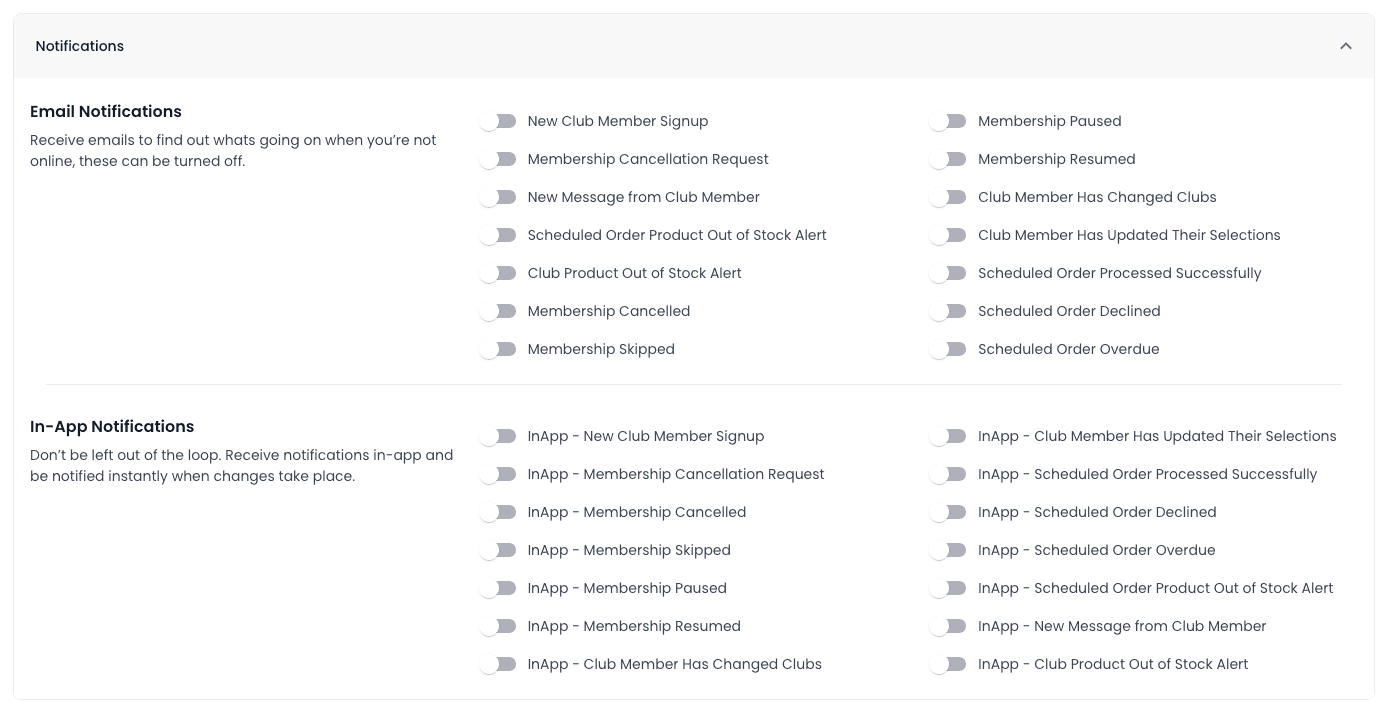
Additionally, you can enable email and in-app notifications for the user. If you prefer not to receive email notifications, simply leave the option disabled.