
Go to Clubs & Subscriptions > Feedback.
Customer Feedback automatically asks your members how their club order went. Fourteen days after a scheduled order is processed, the member receives an email with a link to a short form where they leave a star rating and an optional comment. Every response lands on the Feedback page in your vendor panel, so you can see how each club is being received without running a survey yourself.
Feedback is switched on per club, so you can trial it on one club before rolling it out, and you control how often the same member is asked.
How It Works
Members One checks once a day for scheduled orders that were processed exactly 14 days earlier. For each one that qualifies, it creates a feedback record and emails the member their personal feedback link.
What qualifies for a request
- The order came from a club with feedback switched on.
- The scheduled order processed successfully. Failed, declined and skipped orders are never asked about.
- The customer has an email address on file.
- The membership has not been cancelled. Paused and skipped memberships still receive the request, because the member did receive that order.
- The club's frequency rule allows another request for that member.
Each order can only ever generate one request, so a member is never asked about the same delivery twice. Feedback links do not expire, but they can only be submitted once.
Turning Feedback On for a Club
Feedback is off by default on every club. To switch it on:
Step 1: Open the club
- Go to Clubs & Subscriptions > Subscription Clubs and open the club you want to edit.
Step 2: Find the Customer Feedback section
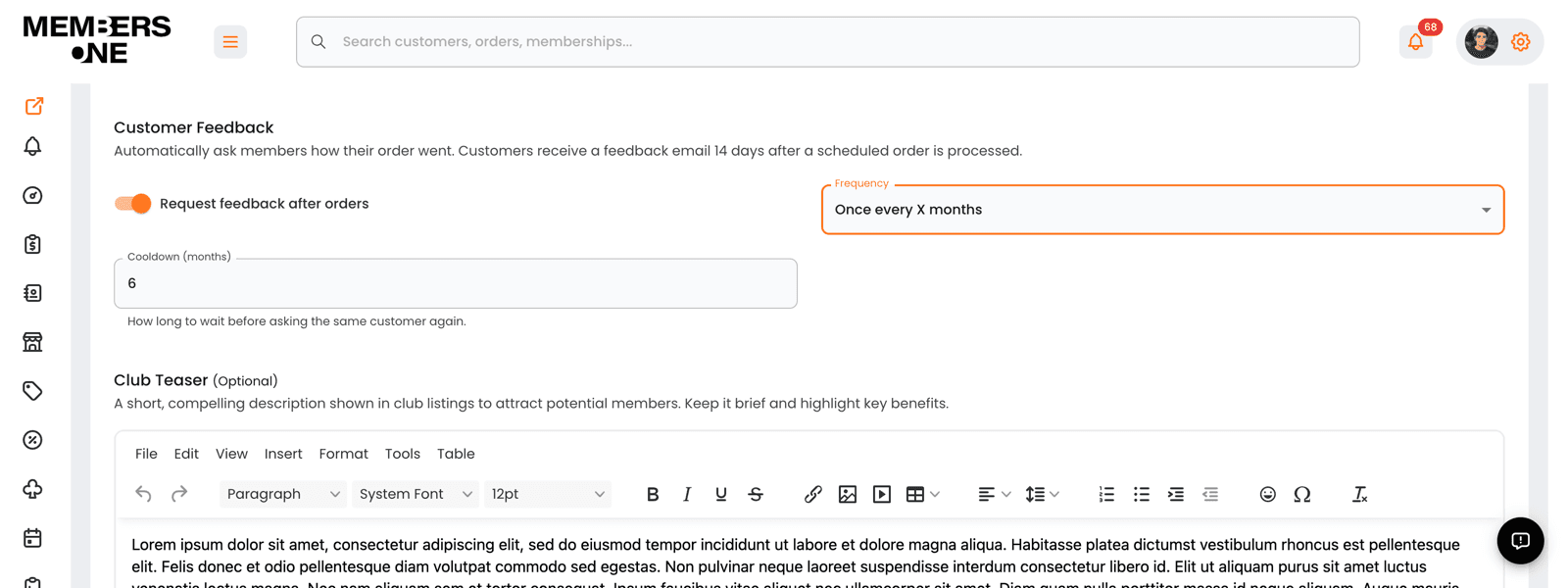
- On the Club Details step, scroll down to Customer Feedback.
Step 3: Switch it on
- Turn on Request feedback after orders.
Step 4: Choose how often to ask
- Set the Frequency to suit the club. The options are described in the table below.
Step 5: Save the club
- Save your changes. New scheduled orders processed from this point are eligible for a feedback request 14 days later.
Below is a table of the frequency options and what each one does.
| First order only | Asks each member once, after their very first club order. Best for measuring the first impression without adding to your members' inbox. |
| Every order | Asks after every processed order. Best for clubs with a small number of shipments a year, or when the contents change substantially each time. |
| Once every X months | Asks at most once in the period you set. Choosing this option reveals a Cooldown (months) field, which accepts 1 to 24 months and defaults to 6. |
Please note: Changing the frequency does not resend anything. It only affects requests that go out from that point onwards.
What Your Member Sees
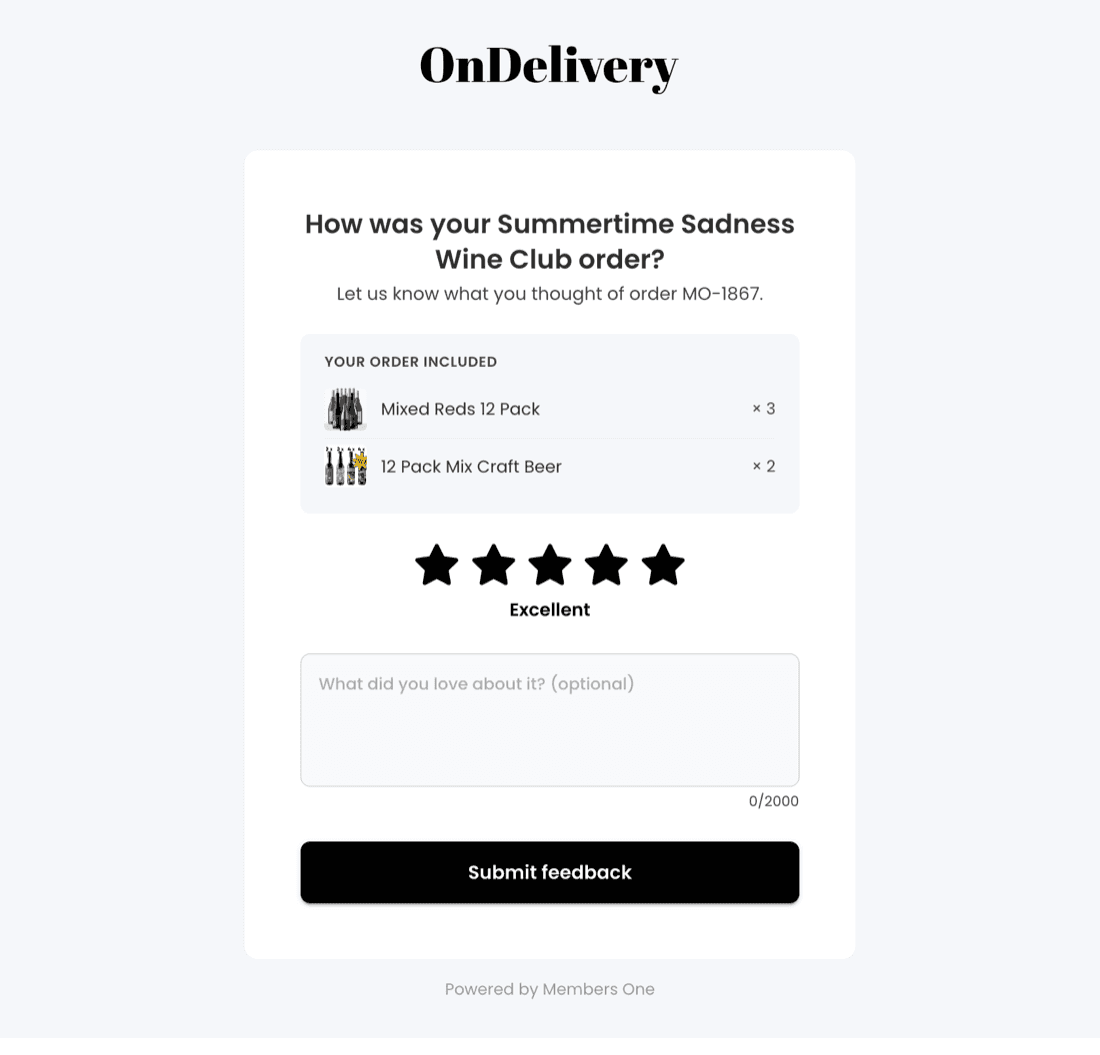
The member receives an email that names the club and the order, lists what was in it, and carries a Share your feedback button. The button opens a single page form on your customer portal domain, with no login required.
On the form the member sees the products from that order, then leaves:
- A star rating from 1 to 5. The stars are labelled Poor, Fair, Average, Great and Excellent as they hover. A rating is required.
- A comment. Optional, up to 2,000 characters. The prompt adapts to the rating, asking what could be better on a low score and what they loved on a high one.
Once they submit, the page thanks them and the link cannot be used again. If they open the link a second time, they see a short message confirming their feedback was already received.
Reviewing Feedback
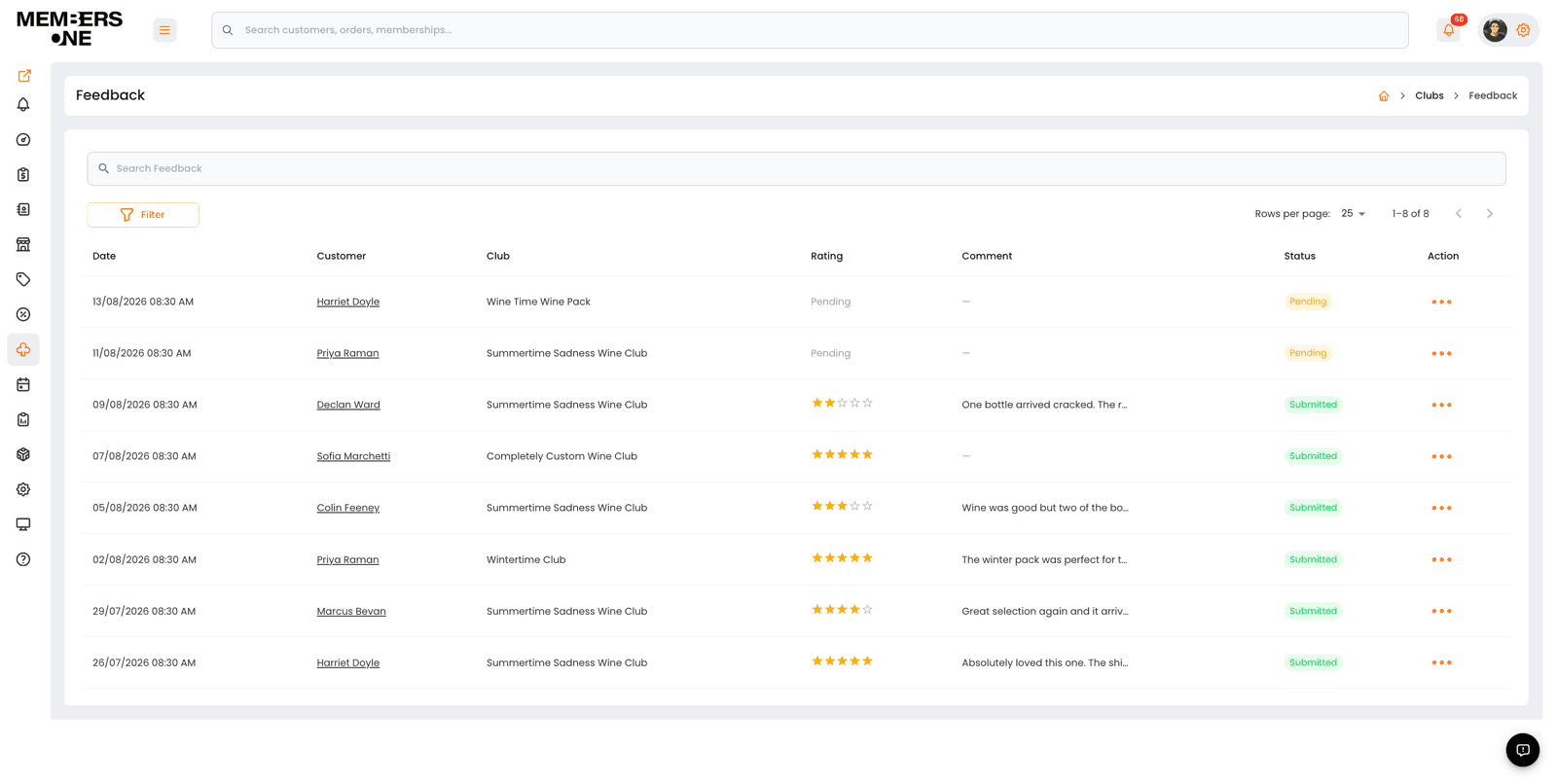
Go to Clubs & Subscriptions > Feedback to see every request and response. Requests appear as soon as they are sent, so the page shows what you are waiting on as well as what has come back.
Below is a table of list page items and their functions.
| Date | The date the feedback request was sent to the member. |
| Customer | The member who was asked. Click the name to open their customer record. |
| Club | The club the order belonged to. |
| Rating | The star rating the member gave, or Pending if they have not responded yet. |
| Comment | The comment they left. Hover to read longer comments in full. |
| Status | Pending while you are waiting on a response, or Submitted once it arrives. |
| Action | Opens View Details, View Customer and View Membership for that row. Clicking anywhere on the row also opens the detail popup. |
Use the search box to find feedback by customer, and the Filter button to narrow the list by Club, Rating, Status, and a From Date and To Date range.
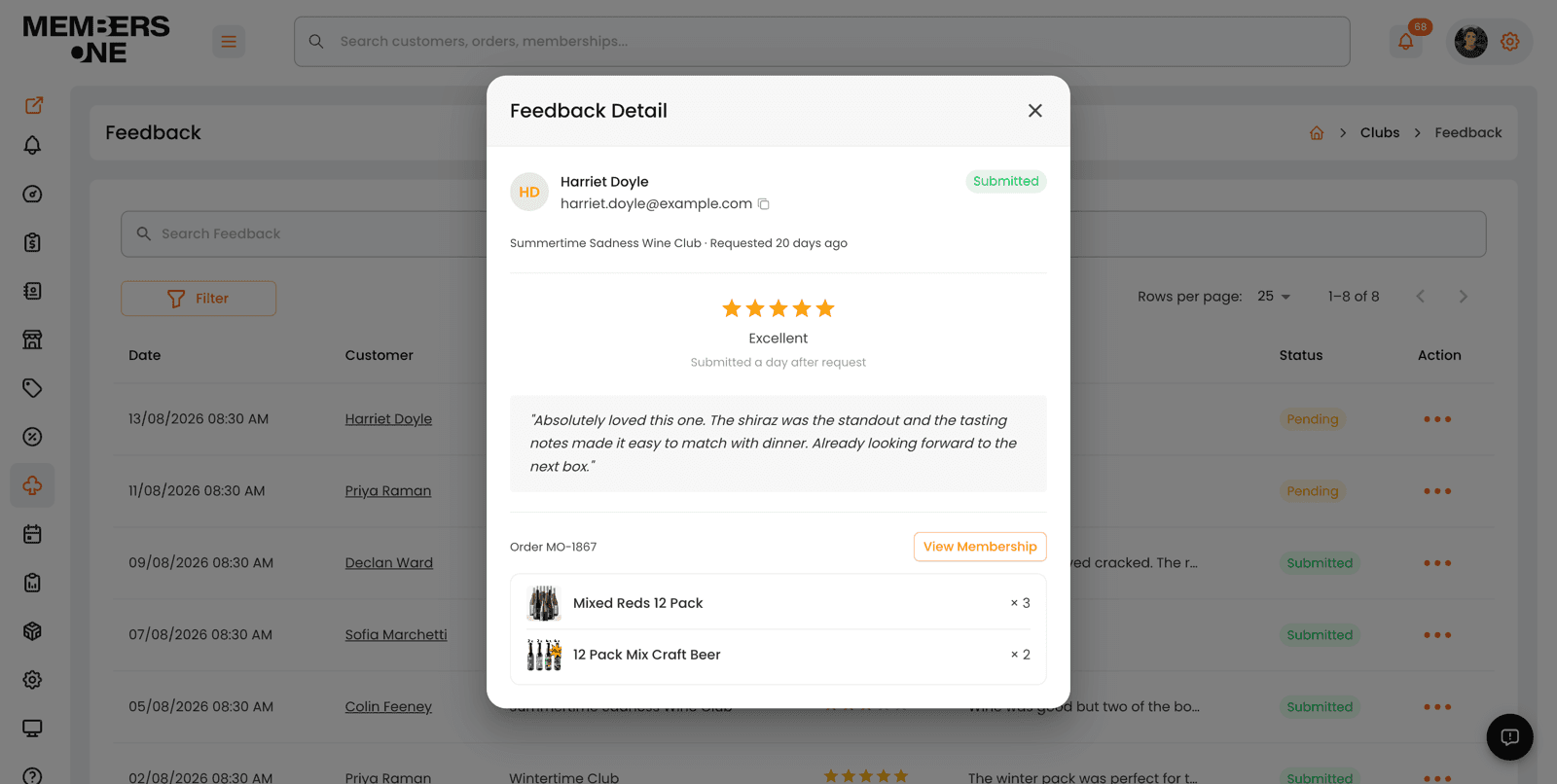
View Details opens a popup with the full comment, the rating, the order number and the products that were in that order. For a response that is still pending, the popup also gives you two actions:
- Resend Email sends the feedback request to the member again, using the same link.
- Copy Link copies the member's feedback link so you can send it yourself, for example in a reply to an email or a phone conversation.
Where Else Feedback Appears
Ratings surface alongside the records they relate to, so you do not have to go looking for them.
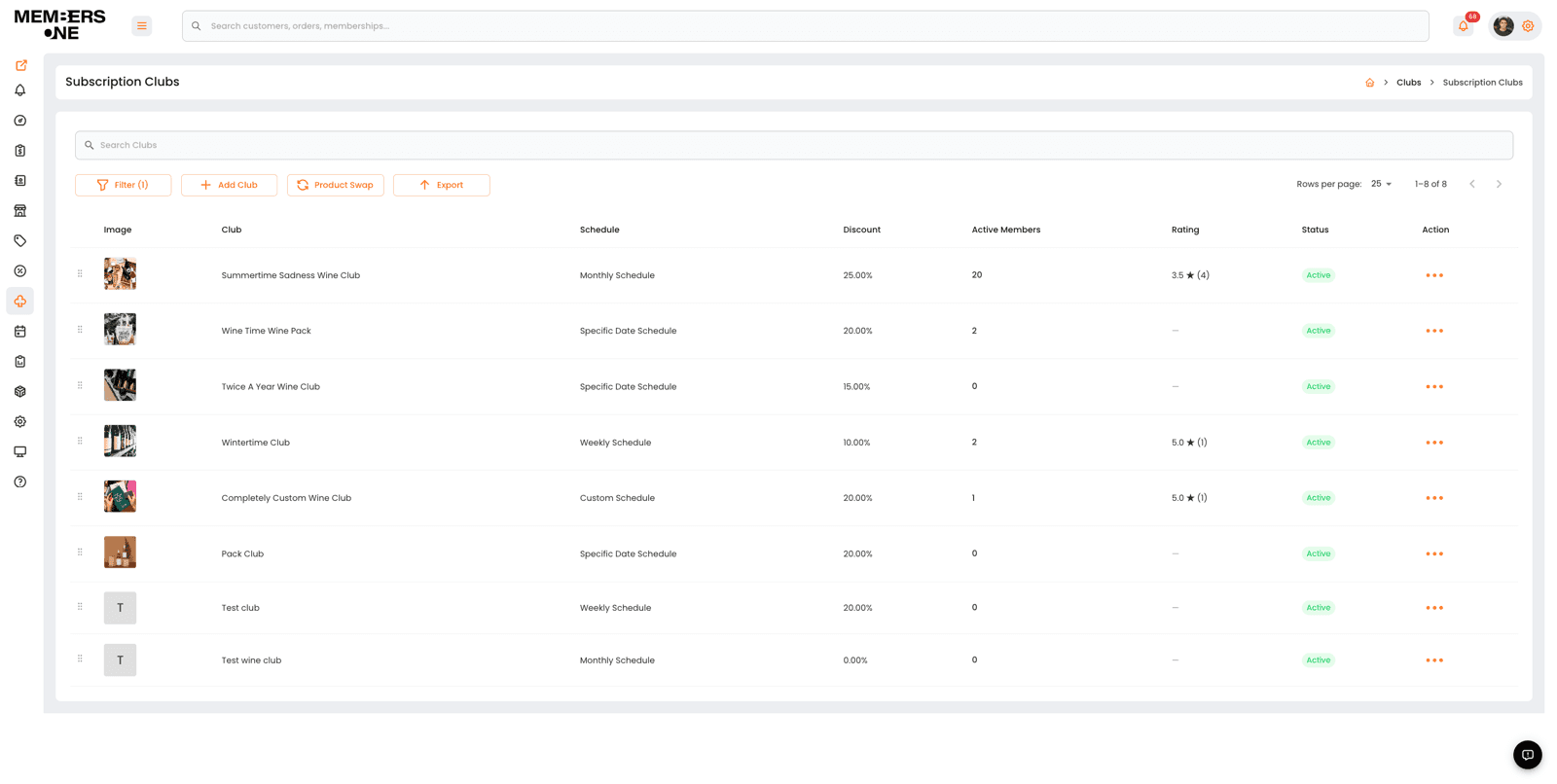
- Subscription Clubs list. A Rating column shows each club's average score and the number of responses behind it, for example 4.6 (32). The figure is included when you export the club list to CSV.
- Club view page. A Feedback row shows whether requests are enabled or disabled for that club.
- Membership view page. A Recent Feedback section lists that member's own responses, so you can see their history before replying to them.
Getting Notified
You can be emailed each time a member submits feedback, so a poor score reaches you while you can still do something about it.
Step 1: Open the user
- Go to Settings > Users & Roles and open the staff member who should be notified.
Step 2: Expand Notifications
- Scroll to the Notifications section and find Membership Feedback Received.
Step 3: Toggle the switch
- Turn on Email to receive the notification by email, or the in app option to see it in your notifications panel. Then save the user.
The notification includes the member's name, the club, the order number, the rating out of 5 and their comment.
Customising the Emails
Both the request that goes to your member and the notification that comes back to you are standard system emails, so you can rewrite them in your own voice.
Go to Settings > System Emails and edit Membership Feedback Request to change what your members receive. Keep the feedback link placeholder in place, because it is what takes the member to their form. The full editing process is covered in the System Emails guide.
Note: Email subjects do not support placeholders, so keep the subject line general rather than trying to include the member or club name in it.
Tips for Good Response Rates
- Start with First order only. It gives you the clearest read on new members and is the least intrusive setting.
- Reply to low scores quickly. Use View Customer from the feedback row to open the member and follow up while the order is still fresh.
- Watch the club average, not single scores. The Rating column on the Subscription Clubs list is the quickest way to compare how your clubs are landing.
- Rewrite the email in your own voice. A request that sounds like the rest of your club communications gets a better response than a generic one.
If you have any questions about Customer Feedback, please get in touch with our Members One support team.