
To locate your System Emails (customer notifications) in the vendor panel, navigate to the settings tab from the left-hand menu.
Go to Settings > System Emails
To log in to your vendor panel, click here.
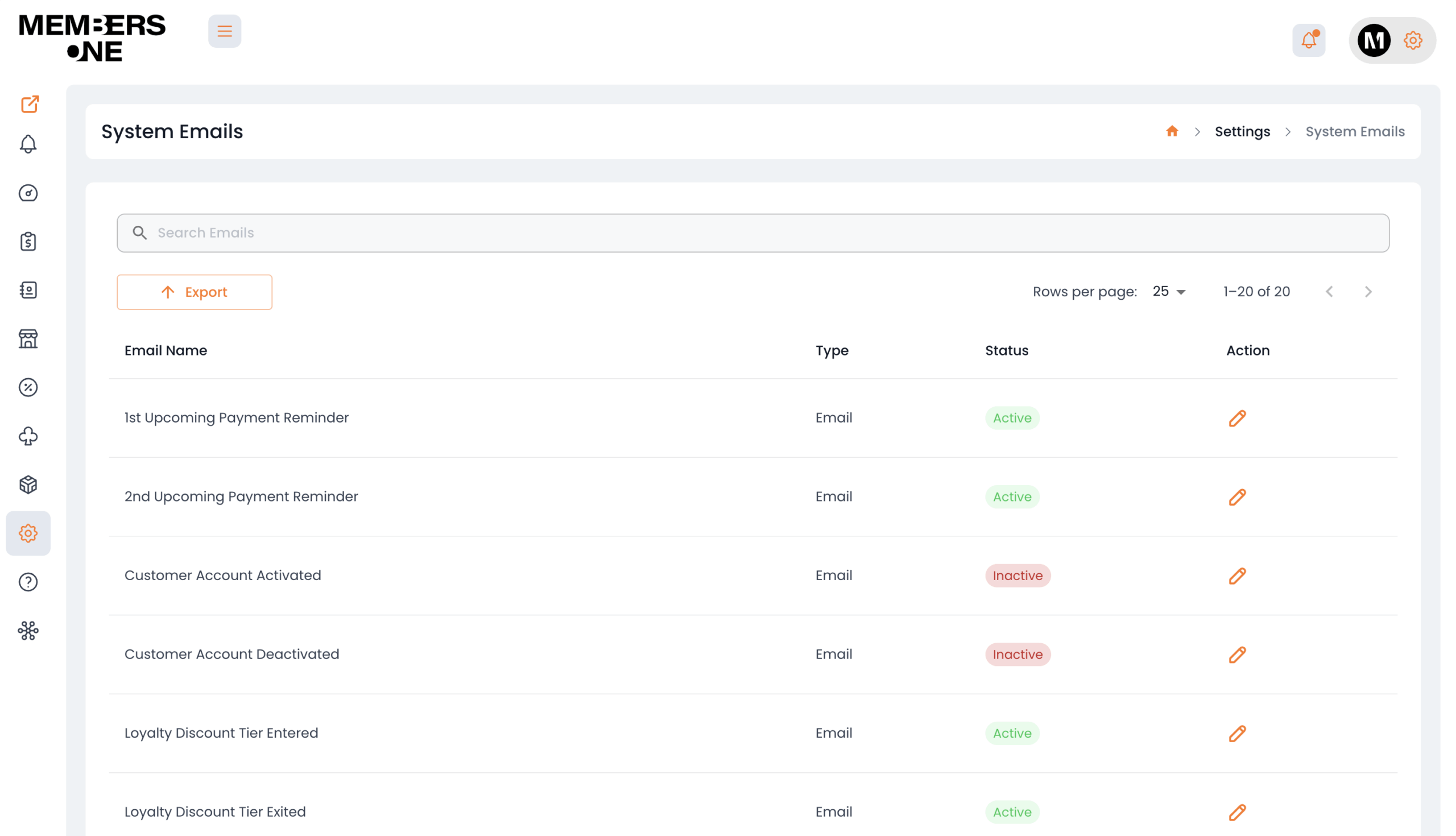
Key member events automatically trigger system emails and can be customised to match your business’s branding. You also have the option to disable any specific emails that are not necessary for your operations.
Edit System Emails
To edit a System Email, click the edit button for the corresponding email. You will then be able to modify both the email content and the subject line.
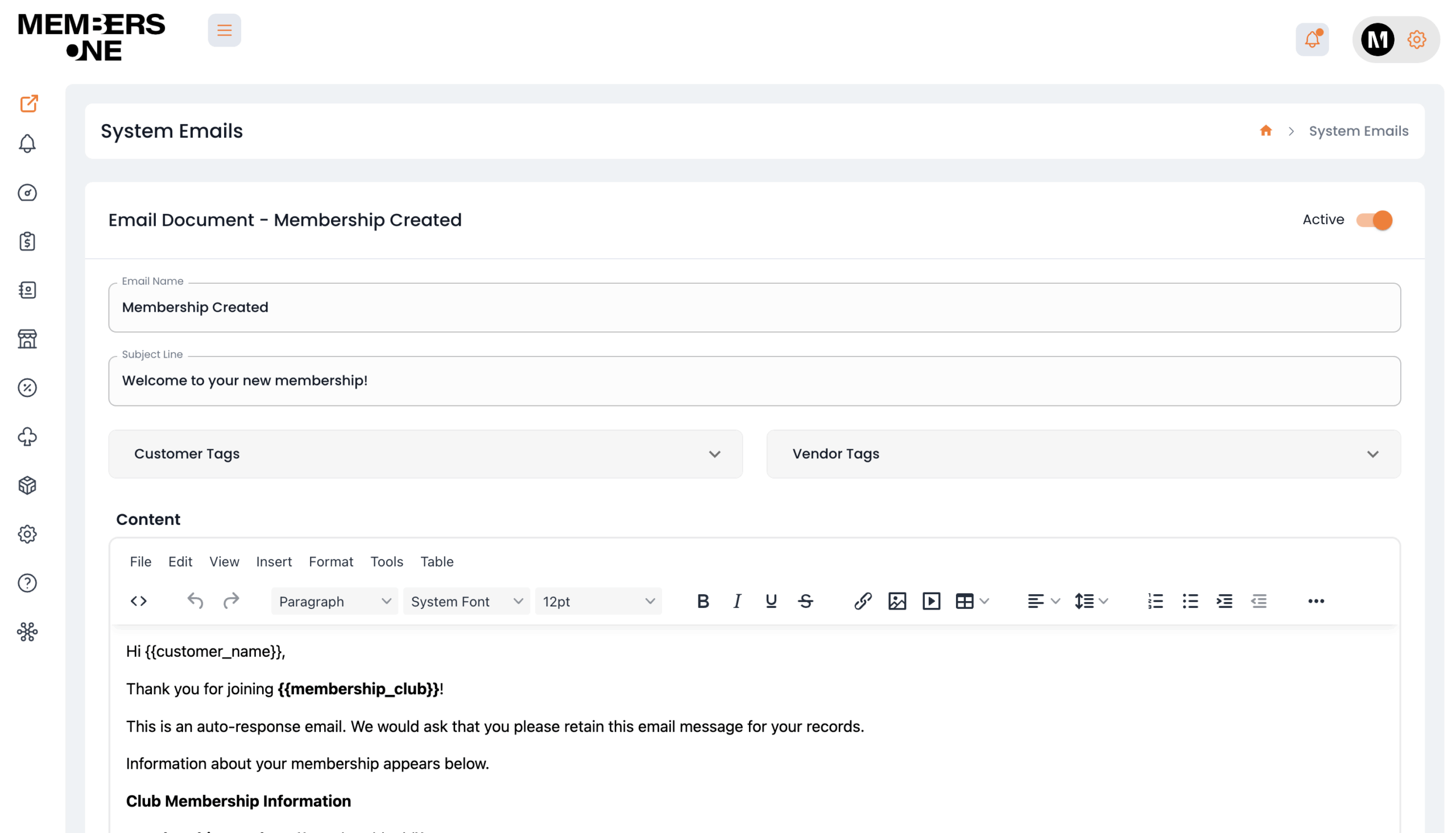
Customer & Vendor Tags
Customer and vendor tags allow you to insert tags that, when triggered, will populate customer data into the email document. Each email document has different tags, so it’s recommended to check what’s available when inserting.
Please note: Email tags must be placed in the body, not the subject.
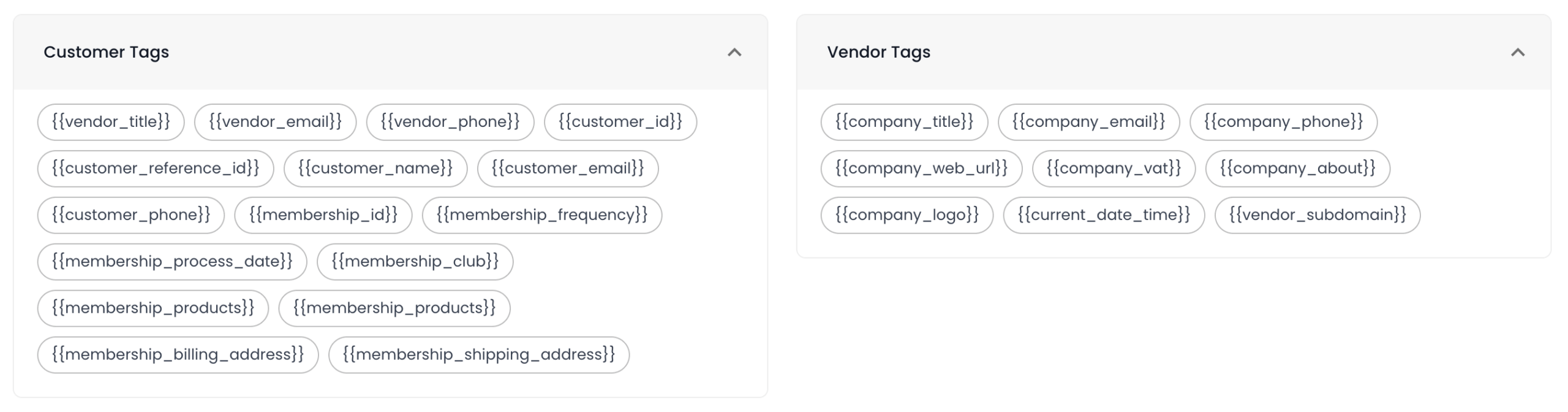
If you cannot find a tag for a specific email, please contact support to inquire about adding it.
Updating Email Template & Email Settings
To update the system’s email template or the “from” email address, please navigate to:
Settings > System Settings > Email
For more information on updating the email template, click here.